Meta's new video editing app, Edits, has recently received a new round of updates. This time, it's not about special effects or filters, but about a major feature: a major upgrade in project management capabilities!
Although this wave of updates is more about "organization and management", don't underestimate these "efficiency tools", which have an immediate effect on improving the creative process and planning the rhythm of content.
If you are a content creator, a short video expert, or a self-media practitioner, this article will quickly tell you what the "inspiration management" function of Edits can do now and how you can use it to improve your creative efficiency.
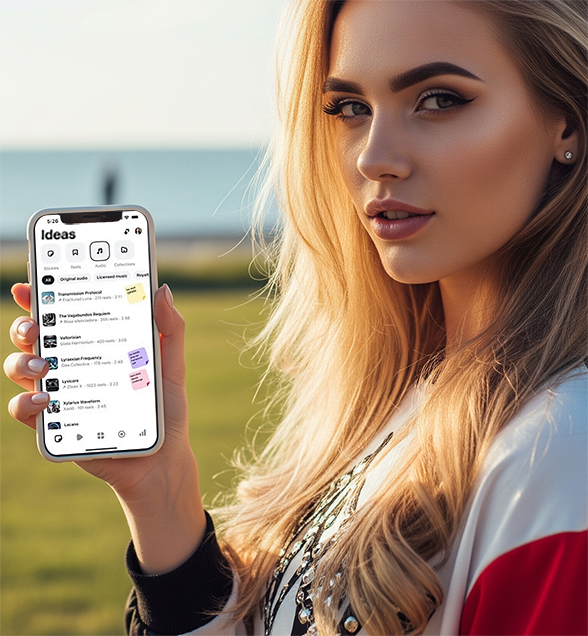
What is the Ideas Tab in Edits?
Ideas Tab is an inspiration management tool designed specifically for content creators in the Edits App.
Unlike traditional editing functions, it does not directly participate in video production, but helps you collect, organize, mark, and track creative inspiration and creative tasks. You can:
Save music/sound effects as a starting point for your creations
Add "Notes" to record short video ideas in your mind
Label, categorize, and mark your inspirations as completed
Manage content production like a to-do list
Simply put, this is your creative draft book + to-do list + inspiration database, tailored for short video creators, allowing you to capture inspiration, organize ideas, and execute them efficiently anytime, anywhere!
Update highlights
The function updates officially released by Meta are as follows:
1. Audio collection function is online
Creators can now save their favorite soundtracks directly in Ideas, so you no longer have to search for your favorite BGM everywhere!
2. Add "Sticky Notes" to the audio
Do you get inspired when you hear good music? You can immediately put a sticky note to record your thoughts, and you can also write down reminders such as ideas, scripts, shooting scenes, etc.
3. Note status management: can be marked as "completed"
After completing a creative task, just click "Done" and the note will automatically be deleted, and the visual feedback is very intuitive.
4. Note filtering and sorting system
You can filter the content according to the note status ("To Do" / "Completed" / "All"), or sort by editing time / creation time / color classification, which is clear and organized.
Practical tutorial: How to use the "Ideas" function to manage your creative plans?
These functions may seem simple, but if used well, they can definitely increase your content production efficiency by at least 50%!
The tutorial steps are as follows:
Step 1: Find inspiration → Collect audio
Did you find good music while browsing Reels or short videos? Don't just give it a like. Long press or click "Save to Ideas" to automatically save it to the "Inspiration Library" of Edits.
Step 2: Add a note → Record creative ideas
Go to the Edits → Ideas tab, click the "+ note" next to the audio, and write down the ideas that come to your mind, such as:
Shooting scene settings
Shooting angle/camera movement
Matching copy/title ideas
Storyboard sketch
Step 3: Use color to mark categories
for example:
Red = Emergency Release
Blue = Brand partnership project
Yellow = Temporary inspiration
Step 4: Check the box to improve efficiency
After you shoot and publish the idea, just click "Mark as Completed" to visually turn the inspiration from "plan" into "results", giving you a full sense of accomplishment!
Examples of actual application scenarios
1. Short video blogger- "Music inspiration capturer"
You see a super hot BGM and immediately think of a vlog or cross-dressing content.
Save the audio with Ideas
Write down your inspiration: "Dress up | Fast-paced editing | Street photography"
Set the color to red (high priority)
Next time you open the App, you can start shooting immediately without having to "forget your inspiration"!
2. Tutorial creators - "Script Draft Pool"
Take Excel tutorials, mobile phone photography teaching, and fashion knowledge popularization?
Create a new note for each inspiration (e.g. "shoot movies with iPhone")
Add the proposed BGM
Record key steps and prompts
Mark "Complete" and archive, produce content systematically
3. Team operation account- "task allocation + progress tracking"
Ideas can be used as a creative schedule:
Each note corresponds to a content task
Different members are distinguished by different colors
Check the "Completed/To-do" category regularly to keep track of project progress
4. Emotional or drama accounts - "Plot Storyboard Memo"
Save Tik Tok Hot Songs
Write down the script: "Misunderstanding between couples | Scene in the park | Close-up of the heroine's expression"
Supplement scenes, lines and other creative details
After shooting, tick "complete" to keep the creative rhythm
Practical Tips: Let Ideas become your "content console"
Review your Ideas library every week to see which inspirations can be executed first.
Set periodic reminders: for example, "update 1 piece of inspiration content every Wednesday" and execute it in conjunction with Ideas tasks.
Creators working in a team can unify color labels and clarify division of labor.
Content type classification (funny/emotional/tutorial/vlog) makes scheduling more efficient.
Why is this update worth your attention?
With the popularity of short video platforms such as TikTok, Reels, and Shorts, creators are facing unprecedented pressure to produce content. Edits is becoming a one-stop tool for short video creation, especially with its increasingly powerful ability to organize inspiration and projects, which is very suitable for content-intensive accounts.
Don't forget, Meta is updating Edits every week and will unlock more practical features in the future. Now is the right time to get started.
Conclusion
Although the creative production functions of Edits are still being iterated, this wave of "Ideas" updates has upgraded it from a "editing app" to a " creator content project management tool."
In the future, it may gradually become a hybrid of Notion + Final Cut + Pinterest + audio library for content creators!
Have you mastered the Ideas inspiration feature of Edits?