Google Photos has introduced a major update that brings powerful video-editing tools directly into the app, making it easier than ever to create polished highlight reels. With new templates, a redesigned editor, improved music selection, and enhanced text customization, Google Photos now offers a more intuitive and CapCut-like editing experience for everyday users.
This step-by-step guide explains all the new features and shows you how to use them to produce professional-looking videos in minutes.
1. What Are the New Video Editing Features in Google Photos?
Google Photos' update focuses on making video creation faster, smarter, and more accessible. The major improvements include:
✔ New Smart Templates (Rolling Out on Android)
Pre-built themes with coordinated music and text
Auto-syncs clips to the beat
Instantly creates highlight videos
Simply select a template, choose your photos and video clips, and Google Photos automatically generates a polished edit.
✔ A Redesigned Video Editor (Available on Android & iOS)
The new editor comes with several productivity-boosting tools:
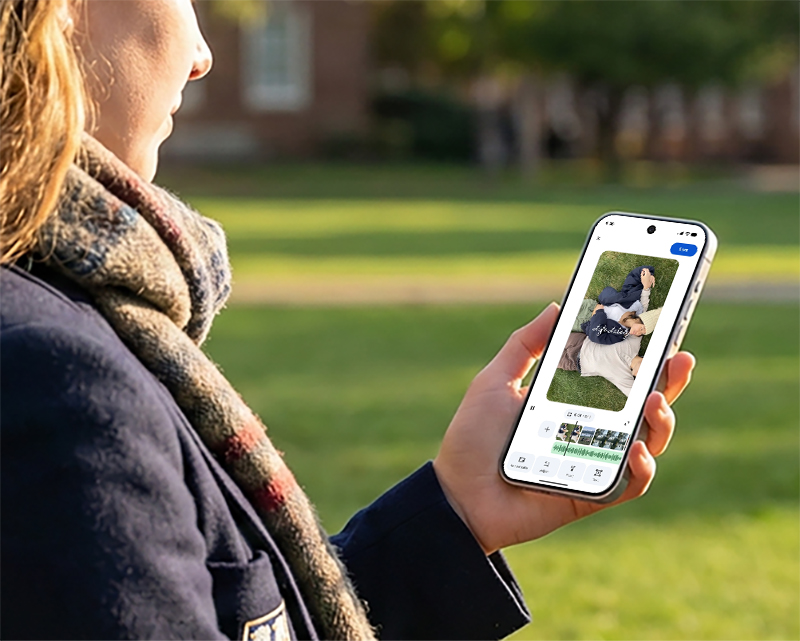
• Universal Timeline
All clips are displayed on a single, unified timeline so you can easily view and adjust your entire project.
• Adaptive Canvas
The editing interface adapts to your video's aspect ratio and layout, making it easier to work in vertical, landscape, or square formats.
• Music + Text on Individual Clips
You can now layer both text and audio on the same clip, perfect for intros, titles, and callouts.
• Now the Default Android Video Editor
When Android users open a video, this redesigned editor appears automatically.
✔ Improved Music Library (Android & iOS)
Users can browse Google Photos' music collection and choose a soundtrack that fits the mood of their highlight reel.
✔ New Text Customization Tools (Android Only)
Add stylized text overlays with:
Multiple font options
Custom colors
Background shapes
Enhanced creative controls
Ideal for social media videos, travel recaps, and storytelling.
2. How Do You Create a Highlight Video in Google Photos?
Follow these steps to create a clean, professional highlight video using the new Google Photos editor.
Step 1: Open the Create Tab
Launch Google Photos.
Tap Create in the bottom menu.
Select Highlight Video.
Step 2: Choose Your Photos and Clips
Pick the images and videos you want to include in your reel. Google Photos will automatically generate a first draft.
Step 3: Apply a Template (Android Only)
If templates are available on your device:
Go to Templates
Select a theme
Let Google Photos auto-edit your video
The app automatically adjusts pacing, transitions, titles, and music sync.
Step 4: Fine-Tune with the Redesigned Editor
Use the new tools to customize your video:
On the Universal Timeline
Rearrange clips
Trim unnecessary sections
Adjust transitions
Using Adaptive Canvas
Change aspect ratios (e.g., 9:16, 1:1, 16:9)
Let the editor auto-fit your layout
Step 5: Add Music
Tap Music and choose from:
Google's built-in soundtrack library
Automatically recommended tracks
All tracks are cleared for use, so you can safely publish your video.
Step 6: Add Text and Titles
Android users get additional styling options:
Stylish titles
Colored backgrounds
Font adjustments
Subtitle-style overlays
This is perfect for TikTok, Instagram Reels, YouTube Shorts, and travel diaries.
Step 7: Save or Share Your Video
You can export the final version or share it directly to:
TikTok
YouTube
Instagram
Facebook
Your device's gallery
3. Why Is the New Google Photos Video Editor Important?
The new Google Photos editor brings several long-term benefits:
✔ A More CapCut-Like, User-Friendly Experience
Great for users who want strong results without learning complex editing software.
✔ Faster Workflow for Creators
Perfect for quick event recaps, holiday highlight reels, and social-ready content.
✔ Ideal for Vertical Video Platforms
Templates and adaptive canvas make it easy to produce Reels, Shorts, and TikToks.
4. Who Should Use Google Photos' New Editing Tools?
This update is especially useful for:
Beginners learning basic video editing
Students and travelers making recap videos
Social media creators posting vertical content
Families organizing memories and special events
Anyone wanting quick, professional-looking results
Final Thoughts
With smart templates, a redesigned timeline, a more flexible canvas, and enhanced music and text tools, Google Photos has evolved into a capable video editing platform. If you want fast, simple, and high-quality video creation directly from your mobile device, this update is worth exploring.