Google recently announced the launch of a new feature for NotebookLM, its AI note-taking and research assistant. This new feature allows users to transform notes, PDFs, images, and other materials into video explanations with a single click. Following the introduction of Audio Overviews, this upgrade further reshapes how we learn and understand information.
So, what exactly does NotebookLM's Video Overviews do? Who is it suitable for? And how can we use it effectively? This article will take you through the core highlights and practical operation tutorials of this important feature.
What are NotebookLM's Video Overviews?
Video Overviews is a new AI-powered video-assisted learning feature in Google NotebookLM. It automatically extracts key information from user-uploaded text, images, PDFs, and other materials, generating illustrated explanation videos to help users quickly understand complex topics.
Google recently announced the launch of a new feature for NotebookLM, its AI note-taking and research assistant. This new feature allows users to transform notes, PDFs, images, and other materials into video explanations with a single click. Following the introduction of Audio Overviews, this upgrade further reshapes how we learn and understand information.
So, what exactly does NotebookLM's Video Overviews do? Who is it suitable for? And how can we use it effectively? This article will take you through the core highlights and practical operation tutorials of this important feature.
What are NotebookLM's Video Overviews?
Video Overviews is a new AI-powered video-assisted learning feature in Google NotebookLM. It automatically extracts key information from user-uploaded text, images, PDFs, and other materials, generating illustrated explanation videos to help users quickly understand complex topics.
This is a new format following Audio Overviews and is suitable for visual learners, especially when the learning material involves diagrams, processes or abstract concepts.
This feature is positioned as a visual version of Audio Overviews and is suitable for:
Data interpretation
Concept Visualization
Teaching Demonstration
Project Proposal
Official definition: Video Overviews extracts key information (such as images, charts, quotes, data, etc.) from your uploaded materials and generates a clearly structured, illustrated video explanation to help you quickly build an intuitive understanding of a topic.
Feature Highlights
Visual presentation: Automatically extract images, tables, citations, and figures to generate dynamic videos
Intelligent explanation: Similar to a virtual lecturer, AI voice explanations are interspersed in the video
Customization supported: Customizable learning objectives, focused topics, and designated audiences
Multi -tasking collaboration: While the video is playing, you can also view mind maps and study notes
Multiple output save: the same notebook can save multiple generated results of different styles.
Tutorial: How to use the Video Overviews feature?
Step 1: Go to NotebookLM official website ( https://notebooklm.google )
Sign up or log in with your Google account and create a new Notebook.
Step 2: Upload your information
Support upload:
Notes, text materials (.txt / .docx)
PDF files
Photo materials (including charts/illustrations)
Links or web page content
After uploading, NotebookLM will automatically parse the content structure and generate note entries.
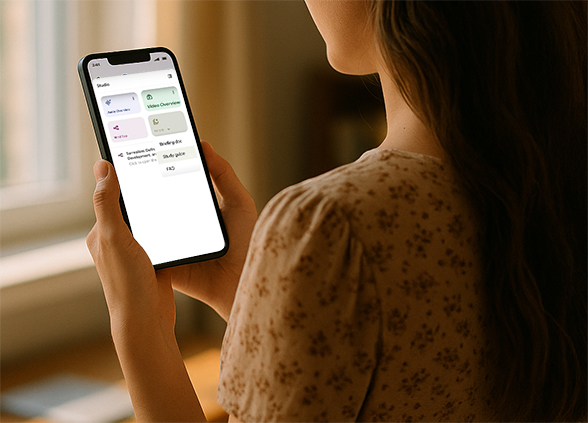
Step 3: Click "Video Overview" in the Studio panel.
Four buttons will appear at the top of the page:
Audio Overviews
Video Overviews
Mind Maps
Reports
Click "Video Overview" to enter the visual explanation generation interface.
Step 4: Set learning goals (optional but recommended).
You can fill in the following information to make the AI output more tailored to your needs:
My level of knowledge about the topic (completely new/some basic/professional background)
What are the main points of concern (such as focusing on charts and graphs, and needing to be concise and to the point)
Who is the audience (students, self-learners, corporate reporting teams, etc.)
Step 5(optional): Fine-tune and export
you can:
Modify scripts and content focus
Replace or add image captions
Export to MP4 or embed in web page
The current version does not support custom dubbing, but future versions may support AI virtual narrators (see Audio Overviews mode).
Practical scenario recommendations: These groups of people should use it the most!
Students and researchers
can convert course materials, English literature, and PowerPoint presentations into explanatory videos for more efficient review.Workplace presenters
use it to quickly generate presentations of complex data and project descriptions for internal communication or external reporting.Content creators/education bloggers
looking to use AI to create highly informative and clearly structured videos? This is the tool for you!Self-learner
Want to get started in a new field? Simply enter a bunch of information and explain you're a complete beginner. AI will then teach you through videos!
Additional function updates (launched simultaneously)
In addition to Video Overviews, the Studio panel of NotebookLM has also been updated:
Multiple copies of the same output type (such as multiple video/audio versions) can be saved in the same Notebook.
There are 4 quick access points at the top: Audio Overviews, Video Overviews, Mind Maps, and Reports.
Support multi-tasking: for example, listening to audio explanations, looking at mind maps, and taking notes at the same time
Tips: How to use Video Overviews effectively?
Choose the right materials
Video Overviews are particularly suitable for content that requires illustrations, processes, and data, such as course PPTs, papers, reports, and operation manuals.Use English as much as possible
Currently, only English is supported. It is best to add English titles and annotations to Chinese materials so that AI can understand them better.Write more prompts
Don't just click "generate" and call it a day! Add some hints to let the AI know your level, goals, and what you'd like to know. This will help you generate much better results.
Future Trends
From an early AI summary tool to now supporting multimodal output (audio + video + graphs + reports), NotebookLM makes the "reprocessing" of learning materials easier and more efficient than ever before.
It is foreseeable that the AI assistant of the future will not only help you organize your notes, but will also become a personal lecturer - with pictures and texts, knowing what you need and solving your confusion.
Summary
Google NotebookLM's Video Overviews not only solve the problem of "too much information to understand," but also make reading materials as easy as watching a video. This is not only a technological upgrade, but also a revolutionary learning method.
What are your tips for using NotebookLM?